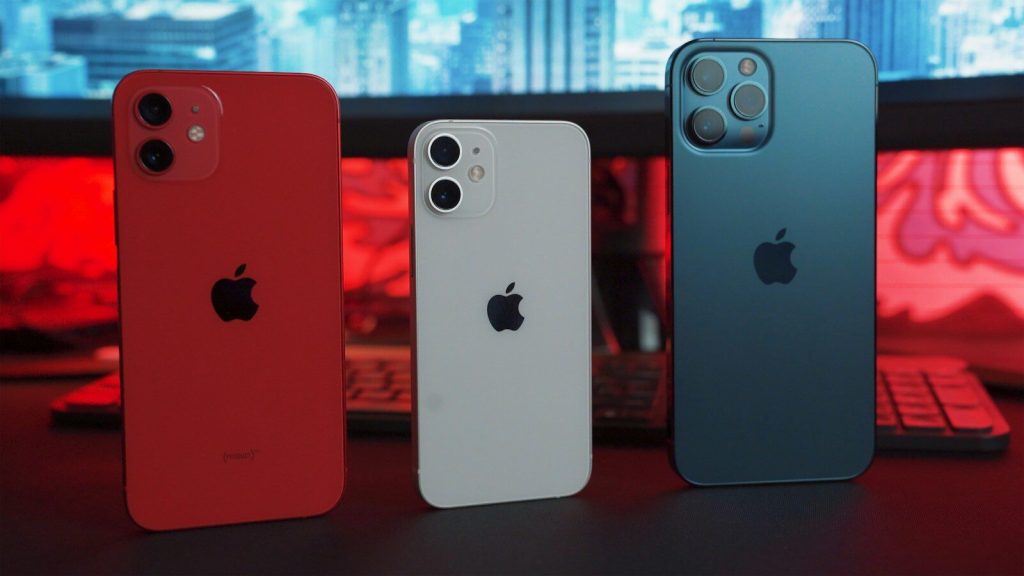
The iPhone 13 mini remains one of Apple’s most beloved compact smartphones — powerful, pocketable, and genuinely enjoyable to use. But if you’ve recently updated to iOS 26 and noticed your phone feeling sluggish, you’re not alone. Apps seem to take longer to open, animations stutter, and the whole experience just feels… heavier. Before you start shopping for a replacement, there’s a good chance you can get things running smoothly again with a few targeted fixes.
What’s Actually Causing the Slowdown?
Every major iOS update brings new features under the hood — and those features often demand more processing power and memory than older hardware was originally designed to handle. The iPhone 13 mini packs Apple’s A15 Bionic chip, which is still a capable processor, but when you combine a nearly full storage drive, an aging battery, and a freshly installed iOS version, performance can take a real hit. The good news? Most of these bottlenecks are fixable without stepping foot in an Apple Store.
Commencez par vérifier l'état de la batterie.
Battery condition is one of the most overlooked culprits behind a slow iPhone. When your battery degrades past a certain threshold, iOS automatically throttles CPU performance to prevent unexpected shutdowns — and you may not even realize it’s happening.
Pour vérifier l'état de votre batterie, rendez-vous sur Paramètres → Batterie → État et charge de la batterie. If the maximum capacity has dropped below 80%, it’s worth considering a battery replacement through an authorized repair provider. It’s a relatively affordable fix that can dramatically breathe new life into your phone. If you’re sitting around 86% like I am, the battery probably isn’t the primary issue — but it’s still worth keeping an eye on as it continues to age.
Libérez de l'espace de stockage
Un iPhone presque saturé est l'une des causes les plus fréquentes de ralentissement. iOS a besoin d'espace pour écrire les fichiers temporaires, traiter les mises à jour et assurer le bon fonctionnement des applications. En règle générale, essayez de conserver au moins 10 à 15 To de stockage disponible en permanence.
To put this in perspective: my own iPhone 13 mini had 117 out of 128 GB used. WhatsApp alone was consuming over 15 GB, and synced media accounted for another 17.5 GB. No wonder things were grinding. Here’s what actually helped:
- Nettoyer WhatsApp : Dans WhatsApp, accédez à Paramètres → Stockage et données → Gérer le stockage. Triez par taille et supprimez les conversations volumineuses et les fichiers multimédias dont vous n'avez plus besoin.
- Supprimer les pièces jointes volumineuses : iOS vous le signalera souvent automatiquement : consultez Réglages → Général → Stockage iPhone et recherchez les recommandations vous invitant à examiner les pièces jointes volumineuses dans l’application Messages.
- Supprimer les médias synchronisés : If you’ve got music or movies synced via Finder or iTunes that you rarely play, remove them from the device and stream on demand instead.
- Activer Photos iCloud avec un stockage optimisé : Turn on iCloud Photos and select “Optimize iPhone Storage” so full-resolution files live in the cloud while your phone keeps lighter versions locally.
- Delete apps you don’t use: Go through your app library and ruthlessly remove anything you haven’t opened in months.
Redémarrez votre téléphone — sérieusement
It sounds almost too basic, but a fresh restart can do more than you’d expect — especially right after a major update. iOS runs a lot of background processes post-installation: re-indexing files, recompiling app code, syncing data. Restarting gives the system a chance to finish those tasks and clear out whatever’s clogging up RAM.
Pour ce faire correctement, rendez-vous à Paramètres → Général → Arrêter, Attendez environ 30 secondes, puis rallumez le téléphone. Faites-en votre première action après chaque mise à jour importante d'iOS.
Effets visuels de réduction
iOS 26 a peut-être introduit de nouvelles animations et des effets de transparence qui sollicitent davantage le GPU. Désactiver ces effets peut améliorer sensiblement la réactivité de l'interface, même si cela peut donner un aspect légèrement moins soigné.
- Aller à Paramètres → Accessibilité → Mouvement et activer Réduire le mouvement.
- Aller à Paramètres → Accessibilité → Affichage et taille du texte et activer Réduire la transparence.
You’ll give up some of iOS’s glossy visual flair, but the responsiveness improvement is usually worth it on older hardware.
Limiter l'activité des applications en arrière-plan
Many apps quietly refresh themselves in the background even when you’re not using them — pulling in new data, running tasks, consuming both battery and CPU cycles. Shutting this off (or limiting it to essential apps) can help things run more smoothly.
- Accéder à Paramètres → Général → Actualisation en arrière-plan.
- Vous pouvez soit le désactiver complètement, soit le laisser activé de manière sélective uniquement pour les applications qui en ont réellement besoin, comme Mail ou votre calendrier.
Laissez Spotlight terminer l'indexation, ou désactivez-le temporairement.
Après une mise à jour majeure d'iOS, Spotlight reconstruit son index de recherche en arrière-plan. Ce processus gourmand en ressources peut entraîner des ralentissements temporaires. Vous pouvez l'accélérer en le désactivant temporairement :
- Aller à Réglages → Siri et recherche.
- Disable “Show App in Search” for most apps.
- Attendez une journée, puis rallumez-les.
Cela permet de terminer rapidement le processus d'indexation au lieu de le laisser s'éterniser.
Vérifiez votre VPN
If you’re running a VPN on your iPhone, it could be contributing to the sluggishness — especially if it’s always-on and routing all your traffic through a remote server. Try disabling it temporarily and see if performance improves. If you’re looking for guidance on which VPNs play nicely with iOS without hammering your performance, check out our article on VPN prenant en charge l'envoi de courrier sur le port SMTP 587 pour obtenir des informations utiles sur le comportement des VPN.
Réinitialiser tous les paramètres en dernier recours
If you’ve worked through everything above and your iPhone 13 mini is still crawling, a settings reset can help — without deleting your photos, apps, or files. It wipes things like network configurations, keyboard settings, and display preferences back to defaults, which can clear out corrupted settings that are quietly causing issues.
- Aller à Réglages → Général → Transférer ou réinitialiser l'iPhone → Réinitialiser → Réinitialiser tous les réglages.
- Your data stays intact, but you’ll need to reconnect to Wi-Fi networks and redo any custom preferences.
Pour une solution radicale, la réinstallation complète d'iOS via le Finder ou iTunes sur un Mac ou un PC est la solution ultime : plus perturbatrice, certes, mais souvent la plus efficace en dernier recours. Assurez-vous d'avoir une sauvegarde complète avant d'opter pour cette solution.
Envie de passer à un modèle supérieur ? Optez pour un produit reconditionné.
If you’ve genuinely exhausted all of these options and still aren’t happy with how your iPhone 13 mini performs, an upgrade might make sense. But before you buy something brand new, consider the environmental cost: manufacturing a new smartphone generates a significant carbon footprint, and there’s a much more sustainable path available.
Un iPhone reconditionné vous offre un appareil entièrement testé et remis à neuf à un prix bien inférieur à celui du neuf, et permet d'éviter qu'un téléphone fonctionnel ne finisse à la poubelle. Vous pouvez également consulter une large sélection sur Comparez Remis à neuf pour trouver la meilleure offre adaptée à votre budget.
L'iPhone 13 Mini a plus de potentiel que vous ne le pensez.
A slow iPhone after a major iOS update is genuinely frustrating — but it’s rarely the end of the road. Working through the basics (battery health, storage cleanup, a proper restart) solves the problem for most people. Layering in things like reduced motion effects and background refresh limits can push performance even further.
D'après mon expérience, appliquer ces étapes simultanément a permis d'améliorer significativement la réactivité de mon iPhone 13 mini, sans nécessiter de changement de matériel. Et si une mise à niveau s'avère nécessaire ultérieurement, opter pour un appareil reconditionné est un choix plus judicieux et plus écologique, tant pour votre porte-monnaie que pour la planète.
Dernière mise à jour : 15 octobre 2026
 Français
  English
  Deutsch
  Nederlands
  Español
  Italiano
  Svenska