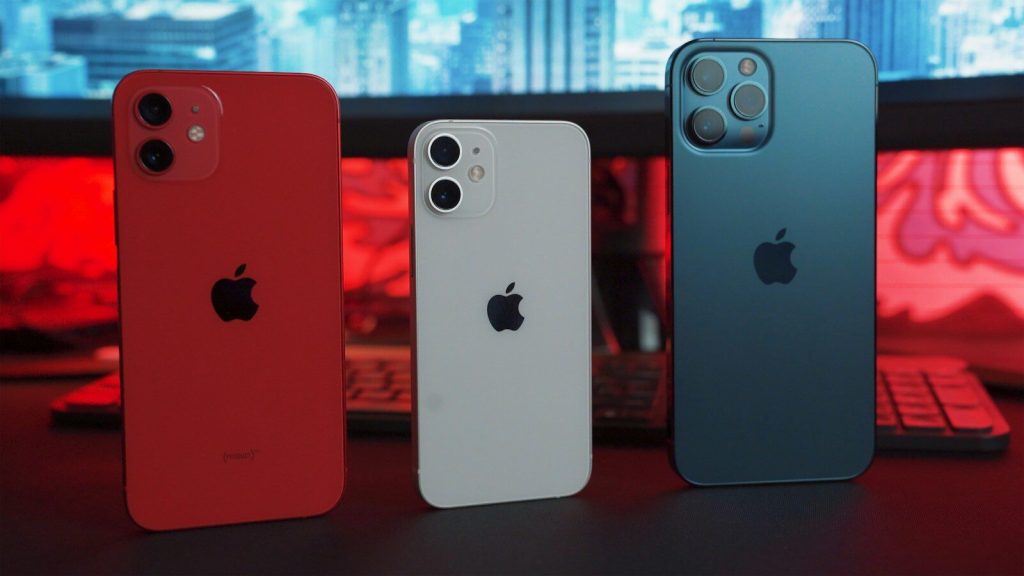
The iPhone 13 mini remains one of Apple’s most beloved compact smartphones — powerful, pocketable, and genuinely enjoyable to use. But if you’ve recently updated to iOS 26 and noticed your phone feeling sluggish, you’re not alone. Apps seem to take longer to open, animations stutter, and the whole experience just feels… heavier. Before you start shopping for a replacement, there’s a good chance you can get things running smoothly again with a few targeted fixes.
What’s Actually Causing the Slowdown?
Every major iOS update brings new features under the hood — and those features often demand more processing power and memory than older hardware was originally designed to handle. The iPhone 13 mini packs Apple’s A15 Bionic chip, which is still a capable processor, but when you combine a nearly full storage drive, an aging battery, and a freshly installed iOS version, performance can take a real hit. The good news? Most of these bottlenecks are fixable without stepping foot in an Apple Store.
Start with Battery Health
Battery condition is one of the most overlooked culprits behind a slow iPhone. When your battery degrades past a certain threshold, iOS automatically throttles CPU performance to prevent unexpected shutdowns — and you may not even realize it’s happening.
To check your battery health, go to Settings → Battery → Battery Health & Charging. If the maximum capacity has dropped below 80%, it’s worth considering a battery replacement through an authorized repair provider. It’s a relatively affordable fix that can dramatically breathe new life into your phone. If you’re sitting around 86% like I am, the battery probably isn’t the primary issue — but it’s still worth keeping an eye on as it continues to age.
Free Up Storage Space
A nearly full device is one of the most common reasons an iPhone starts feeling slow. iOS needs breathing room — free space to write temp files, process updates, and keep apps running efficiently. As a rule of thumb, try to keep at least 10–15% of your total storage available at all times.
To put this in perspective: my own iPhone 13 mini had 117 out of 128 GB used. WhatsApp alone was consuming over 15 GB, and synced media accounted for another 17.5 GB. No wonder things were grinding. Here’s what actually helped:
- Clean up WhatsApp: Inside WhatsApp, go to Settings → Storage and Data → Manage Storage. Sort by size and delete large conversations and media you no longer need.
- Delete large message attachments: iOS will often flag this for you automatically — check Settings → General → iPhone Storage and look for recommendations to review large attachments in the Messages app.
- Remove synced media: If you’ve got music or movies synced via Finder or iTunes that you rarely play, remove them from the device and stream on demand instead.
- Enable iCloud Photos with optimized storage: Turn on iCloud Photos and select “Optimize iPhone Storage” so full-resolution files live in the cloud while your phone keeps lighter versions locally.
- Delete apps you don’t use: Go through your app library and ruthlessly remove anything you haven’t opened in months.
Restart Your Phone — Seriously
It sounds almost too basic, but a fresh restart can do more than you’d expect — especially right after a major update. iOS runs a lot of background processes post-installation: re-indexing files, recompiling app code, syncing data. Restarting gives the system a chance to finish those tasks and clear out whatever’s clogging up RAM.
To do this properly, go to Settings → General → Shut Down, wait about 30 seconds, then power the phone back on. Make this your first move any time you install a significant iOS update.
Dial Back Visual Effects
iOS 26 may have introduced new animations and transparency effects that put extra load on the GPU. Turning these down can make a noticeable difference in how snappy the interface feels — even if it makes things look slightly less polished.
- Go to Settings → Accessibility → Motion and enable Reduce Motion.
- Go to Settings → Accessibility → Display & Text Size and enable Reduce Transparency.
You’ll give up some of iOS’s glossy visual flair, but the responsiveness improvement is usually worth it on older hardware.
Limit Background App Activity
Many apps quietly refresh themselves in the background even when you’re not using them — pulling in new data, running tasks, consuming both battery and CPU cycles. Shutting this off (or limiting it to essential apps) can help things run more smoothly.
- Navigate to Settings → General → Background App Refresh.
- Either disable it entirely, or selectively keep it on only for apps that genuinely need it, like Mail or your calendar.
Let Spotlight Finish Indexing — or Temporarily Disable It
After a major iOS update, Spotlight rebuilds its search index from scratch in the background. This is a resource-intensive process that can cause temporary slowdowns across the board. You can help it along by temporarily switching it off:
- Go to Settings → Siri & Search.
- Disable “Show App in Search” for most apps.
- Wait a day, then turn them back on.
This forces the indexing process to wrap up quickly rather than dragging on indefinitely.
Check Your VPN
If you’re running a VPN on your iPhone, it could be contributing to the sluggishness — especially if it’s always-on and routing all your traffic through a remote server. Try disabling it temporarily and see if performance improves. If you’re looking for guidance on which VPNs play nicely with iOS without hammering your performance, check out our article on VPNs That Support Mailing on SMTP Port 587 for some useful context on VPN behavior.
Reset All Settings as a Last Resort
If you’ve worked through everything above and your iPhone 13 mini is still crawling, a settings reset can help — without deleting your photos, apps, or files. It wipes things like network configurations, keyboard settings, and display preferences back to defaults, which can clear out corrupted settings that are quietly causing issues.
- Go to Settings → General → Transfer or Reset iPhone → Reset → Reset All Settings.
- Your data stays intact, but you’ll need to reconnect to Wi-Fi networks and redo any custom preferences.
For the most thorough fix, a clean iOS reinstall via Finder or iTunes on a Mac or PC is the nuclear option — more disruptive, but often the most effective when nothing else works. Make sure you have a full backup before going this route.
Thinking About Upgrading? Go Refurbished
If you’ve genuinely exhausted all of these options and still aren’t happy with how your iPhone 13 mini performs, an upgrade might make sense. But before you buy something brand new, consider the environmental cost: manufacturing a new smartphone generates a significant carbon footprint, and there’s a much more sustainable path available.
A refurbished iPhone gives you a fully tested and restored device at a fraction of the retail price — and keeps a working phone out of the waste stream. You can also browse a wide selection at Compare Refurbished to find the best deal for your budget.
The iPhone 13 Mini Has More Life in It Than You Think
A slow iPhone after a major iOS update is genuinely frustrating — but it’s rarely the end of the road. Working through the basics (battery health, storage cleanup, a proper restart) solves the problem for most people. Layering in things like reduced motion effects and background refresh limits can push performance even further.
In my experience, tackling these steps in combination made a meaningful difference on my iPhone 13 mini — it felt noticeably more responsive without requiring any hardware changes. And if upgrading really does become necessary down the line, choosing a refurbished device is the smarter, greener choice for your wallet and the planet.
Last Updated on 15 October 2026
 English
  Deutsch
  Nederlands
  Français
  Español
  Italiano
  Svenska