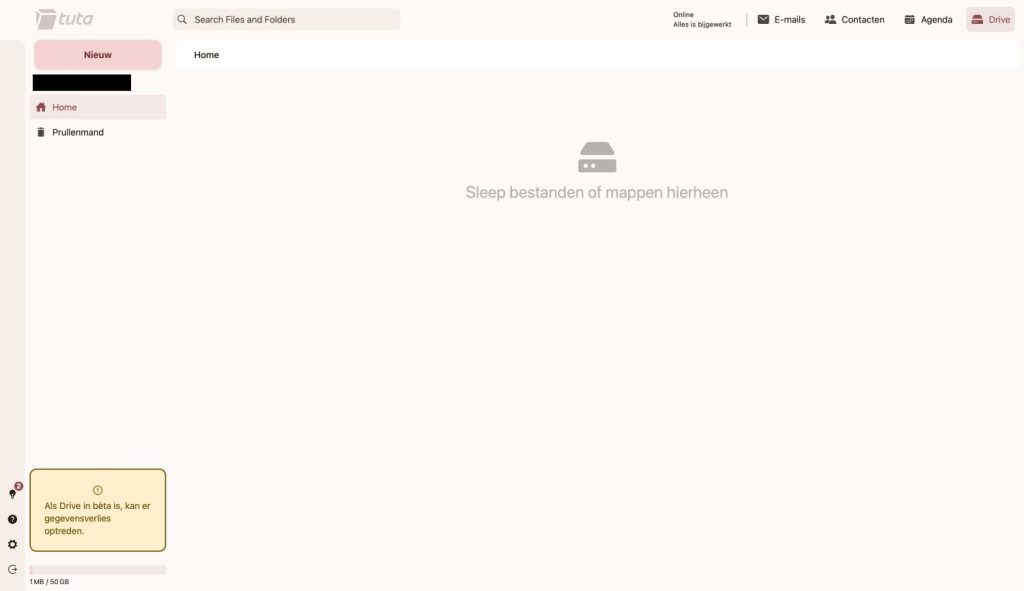
Privacy-focused cloud storage has been gaining serious traction lately, and Tuta — the German company best known for its encrypted email service — has now entered the cloud storage space with Tuta Drive. I got early access to the beta, so I’ve been putting it through its paces to give you a proper first look before it officially launches to the public.
If you’ve already read my Tuta Mail Review, you’ll know that Tuta takes privacy seriously. So the big question is: does Tuta Drive live up to those same privacy standards, and is it actually usable? Let’s dig in.
What Is Tuta Drive?
Tuta Drive is a cloud file storage service integrated directly into the Tuta ecosystem. It sits alongside Tuta Mail, Contacts, and Calendar — all accessible from the same dashboard. The idea is simple: give Tuta users a private, encrypted place to store their files without relying on Big Tech alternatives like Google Drive or Dropbox. Visit Tuta Drive to learn more.
As of writing, Tuta Drive is still in beta, and Tuta itself warns users about this openly — a yellow notice at the bottom left of the interface reads: When Drive is in beta, data loss may occur. So don’t store anything mission-critical there just yet. That said, it should be publicly available within the next few months.
Getting Started With Tuta Drive
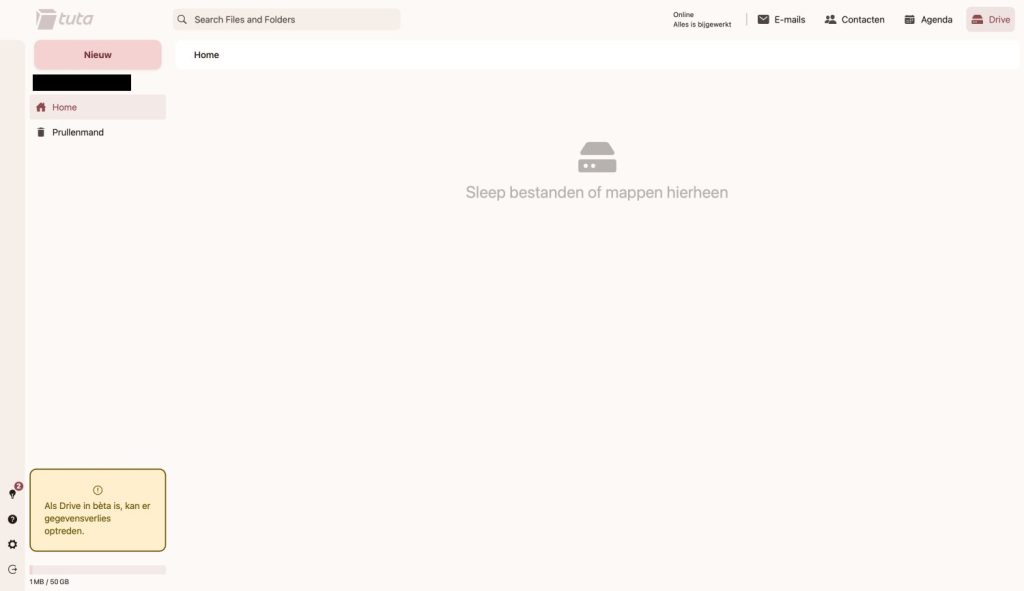
If you’re already a Tuta user, accessing Drive is straightforward. Just click the Drive button in the top-right navigation bar, and you’re in. There’s no separate sign-up, no additional app to install — it’s baked right into your existing Tuta account.
The interface is clean and minimal. You get a left sidebar with Home and Prullenmand (Trash), a main content area, and a pink “Nieuw” (New) button in the top left to start creating folders or uploading files. That’s pretty much it.
Creating Folders and Uploading Files
Clicking the “New” button reveals three options:
- Map aanmaken — Create a new folder
- Upload bestand — Upload a file
- Map uploaden — Upload an entire folder
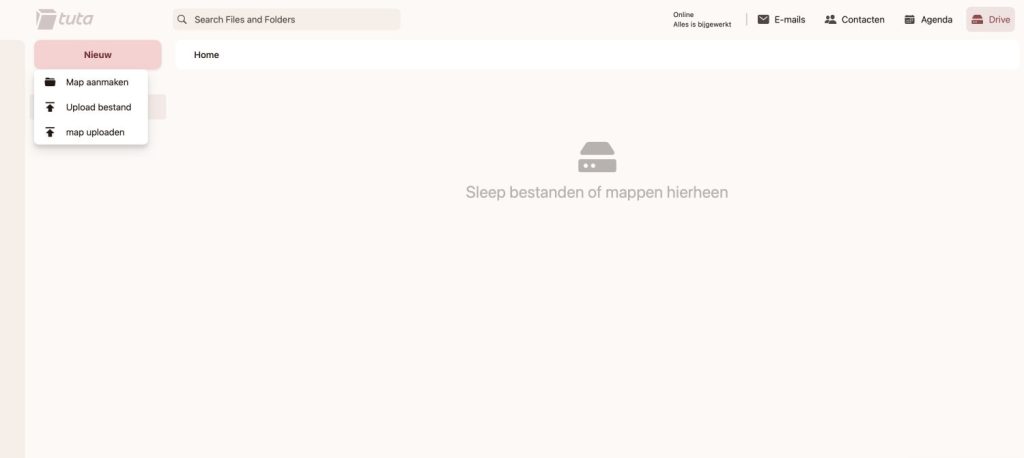
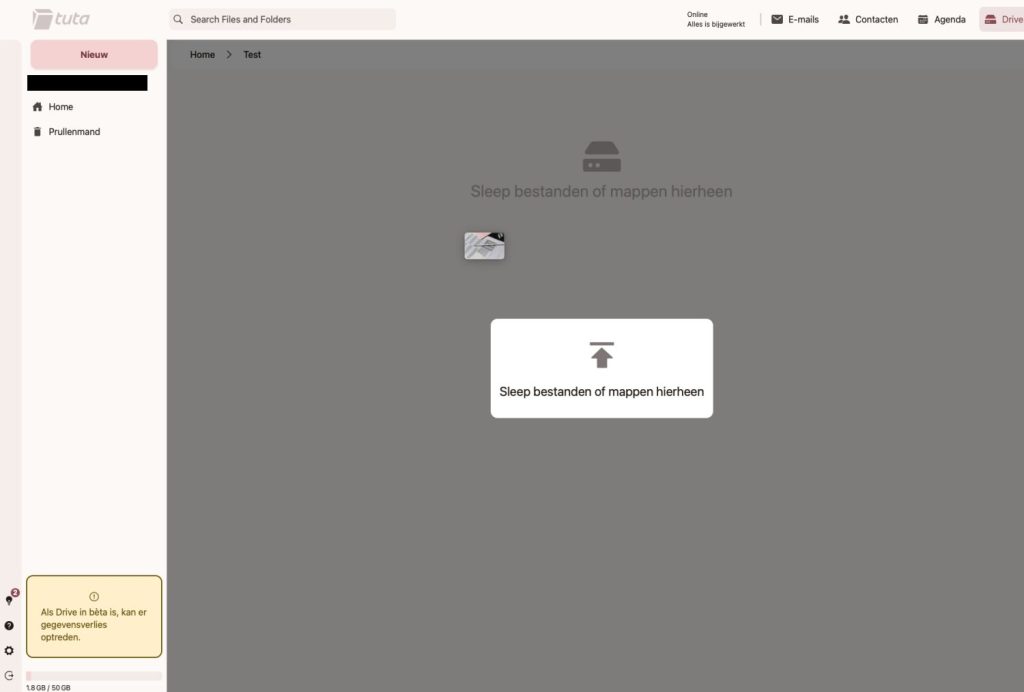
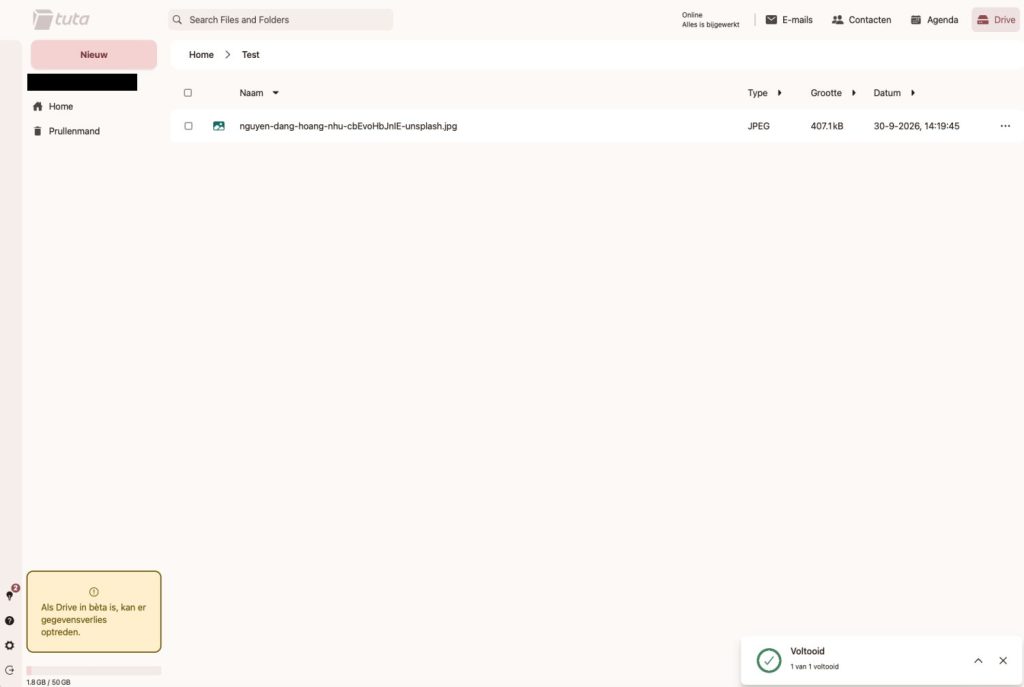
You can also drag and drop files directly into the browser window, which is a nice touch. I tested this by dragging a JPEG image into a folder called “Test,” and it worked seamlessly. The file showed up almost immediately with its name, file type, size, and timestamp displayed in the file list.
The File Management Experience
Once you’ve created a folder and uploaded some files, the experience is clean and easy to navigate. Folders appear in the Home view with their name, type, and creation date. Clicking into a folder shows your files with columns for Name, Type, Size, and Date — sortable by clicking the column headers.
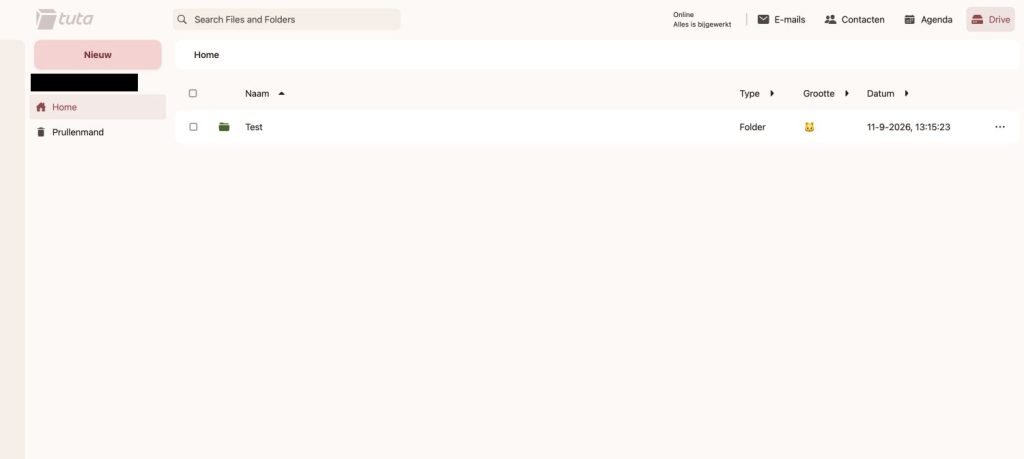
Each file has a three-dot menu (⋯) on the right side for additional actions. And of course, the drag-and-drop upload is supported, which triggers a clean upload overlay directly in the browser.
After a successful upload, you’ll see a small “Voltooid” (Completed) toast notification in the bottom right corner, confirming the file was uploaded. It’s a small detail, but it adds a polished feel to what is otherwise a very basic interface.
The Big Pro: End-to-End Encryption (E2EE)
Here’s where Tuta Drive genuinely stands out. All files stored in Tuta Drive are end-to-end encrypted. This means your files are encrypted on your device before they even leave for Tuta’s servers. Tuta themselves cannot read your files — and neither can anyone else who might intercept them in transit.
This is a rare feature in the cloud storage world. Very few providers implement true E2EE for stored files. Proton Drive is probably the most well-known alternative that also does this. If you’re looking at the broader landscape of privacy-respecting European alternatives, check out the Top European Privacy-Friendly Alternatives to Google Drive for a full comparison.
For privacy-conscious users — journalists, activists, businesses handling sensitive data, or just anyone who doesn’t want a tech giant scanning their files — this encryption guarantee is a significant advantage over mainstream options like Google Drive or Dropbox.
Storage Capacity
In my beta account, I can see 1.8 GB / 50 GB used at the bottom of the sidebar, suggesting Tuta Drive comes with 50 GB of storage on the plan I’m testing. The exact storage allocation will likely depend on your Tuta subscription tier when the product officially launches.
If you’re planning to sign up for Tuta and want to save some money, it’s worth checking out available Tuta Discounts & Coupons or the Tuta Referral Code to get 1 free month on any yearly plan.
What Tuta Drive Is Missing (For Now)
Let’s be honest — Tuta Drive is very basic compared to what you might be used to. Here’s a rundown of what’s currently missing:
This is probably the biggest missing feature. You cannot share files or folders with other people via a link. There’s no “Share with link,” no collaboration features, no public or private link generation. If you need to send someone a file from Tuta Drive right now, you’ll have to download it and attach it to an email — which somewhat defeats the purpose.
No Mobile App
Tuta Drive is currently web-only. There’s no dedicated mobile app for iOS or Android. You can technically access the Tuta web app from a mobile browser, but it’s not optimized for it.
No Desktop Sync App
Unlike Proton Drive (which has a desktop sync client for Windows, macOS, and Linux) or Google Drive’s desktop app, Tuta Drive has no desktop syncing functionality whatsoever. You can’t set up a folder on your computer that automatically syncs to the cloud. Everything has to be done manually through the web interface.
For comparison, if desktop sync is important to you, take a look at how Proton Drive works on Linux — it’s a much more mature product in that regard. You can also read the full Proton Drive review for a deeper comparison.
No Preview for Most File Types
There’s limited in-browser file preview support. For now, it’s primarily a place to store and retrieve files — not to view them inline.
No Collaboration Features
No real-time editing, no commenting, no version history (at least not visible in the UI) — none of the collaborative features that tools like Google Drive or even Proton Drive are starting to offer.
Tuta Drive vs. Proton Drive: A Quick Comparison
Since Proton Drive is the most natural comparison — both being privacy-first, E2EE cloud storage options — here’s a quick side-by-side:
- Encryption: Both offer end-to-end encryption ✅
- Web interface: Both have web apps ✅
- Mobile app: Proton ✅ | Tuta ❌
- Desktop sync: Proton ✅ | Tuta ❌
- File sharing/links: Proton ✅ | Tuta ❌
- File preview: Proton (limited) ✅ | Tuta ❌
- Integrated email suite: Both ✅
- European privacy laws: Both (Germany vs. Switzerland) ✅
Tuta Drive is clearly behind Proton Drive in terms of features right now, but Proton had a head start. Tuta Drive has the foundation in place — the encryption, the integration, the interface — and just needs time to build out the feature set.
Who Is Tuta Drive For Right Now?
Given its current beta state, Tuta Drive is best suited for:
- Existing Tuta users who want a convenient, encrypted place to store files within their existing Tuta ecosystem
- Privacy-first users who prioritize E2EE above all else and are willing to tolerate a limited feature set
- Light users who just need to stash a few documents or images securely and don’t need sync, sharing, or mobile access
It is not the right choice for power users, teams needing collaboration, or anyone who needs file sharing, mobile access, or desktop sync right now.
Pricing and Plans
Tuta Drive is included as part of your Tuta subscription — it’s not a standalone product. The storage you get depends on your plan. Given that Tuta’s paid plans are already competitively priced for email, getting cloud storage bundled in adds real value. If you’re not yet a Tuta subscriber, there are sometimes significant discounts available on Tuta plans that make it an even more attractive package.
Final Verdict: Tuta Drive Review
Tuta Drive is a promising start, but it’s very much a work in progress. The core foundation is solid — the end-to-end encryption is real, the interface is clean, and it integrates neatly with the rest of the Tuta suite. Uploading files works fine, folder management is intuitive, and the drag-and-drop functionality is a nice touch.
But there’s no sugarcoating the fact that it’s significantly behind competitors like Proton Drive or even Infomaniak’s kDrive (read the Infomaniak kSuite Review for another solid privacy-first option). No sharing, no mobile app, no desktop sync — these are major gaps that limit its real-world usefulness for most people today.
That said, Tuta has a strong track record of iterating and improving its products. If they bring mobile apps, desktop sync, and file sharing to Drive — while maintaining their strict E2EE standards — this could become a genuinely compelling alternative in the privacy-focused cloud storage space.
My recommendation: If you’re already a Tuta user, go ahead and try Drive for light file storage. If you’re evaluating it as a full Google Drive or Proton Drive replacement, hold off for now and revisit in 6–12 months once the feature set has matured.
Rating: 3/5 — Good foundation, but needs significant development before it can compete as a full cloud storage solution.
Last Updated on 30 September 2026


 English
  Deutsch
  Nederlands
  Français
  Español
  Italiano
  Svenska