If you’re a Proton user thinking about upgrading to cover a second person — whether that’s a partner, sibling, or close friend — Proton Duo might be exactly what you need. I’ve been on Proton Unlimited for a while now, and when the Duo plan launched, I signed up and tested it firsthand. Since there’s a 30-day money-back guarantee, the risk was minimal. Here’s everything you need to know, based on real hands-on experience.

⚡ BLACK FRIDAY - 50% OFF PROTON UNLIMITED
Get Proton Unlimited with VPN, Pass, Mail, Drive & more with 50% off the 12-month plan. Or get Proton Mail Plus with 60% off.
Go to Proton UnlimitedWhat Exactly Is Proton Duo?
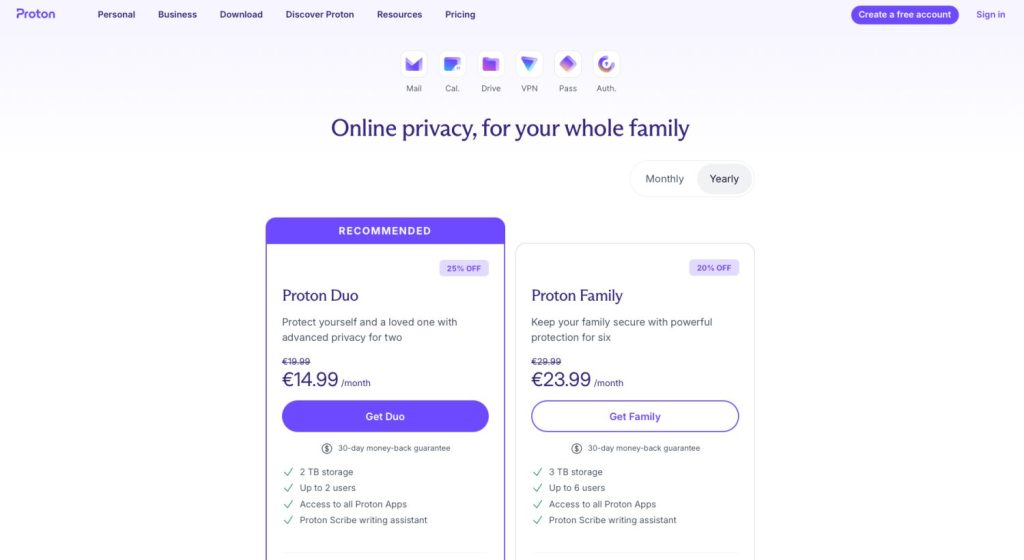
Proton Duo is a privacy-focused subscription plan built for two people. It sits neatly between the single-user Proton Unlimited plan and the larger Proton Family plan, which accommodates up to six users. Think of it as a two-seat bundle — both users get the full Proton experience at a combined price that’s lower than paying for two Unlimited accounts separately.
Here’s a breakdown of what’s included with Proton Duo when billed annually:
- 2 users
- 2 TB of shared storage
- Full access to all Proton apps: Mail, Drive, Calendar, VPN, Pass, and more
- Proton Scribe AI writing assistant
- 30 email addresses/aliases per user
- 3 custom email domains
- 10 VPN connections
- Dark Web Monitoring
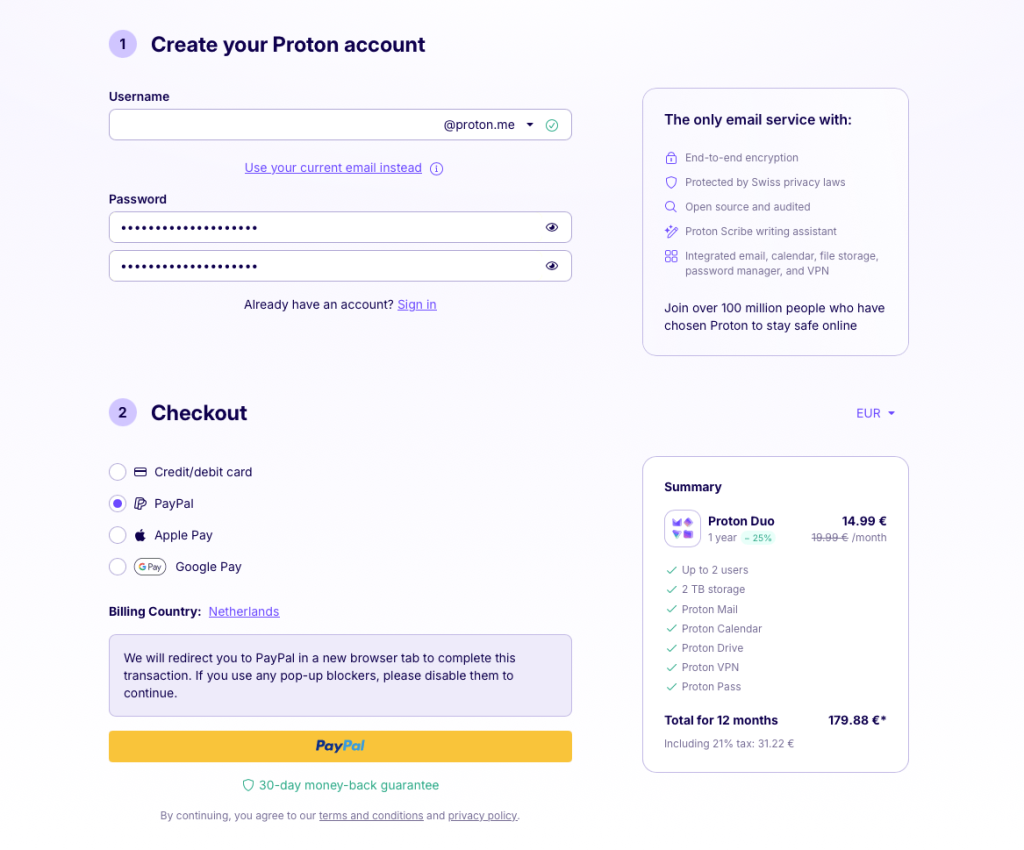
- Price: €14.99/month (billed annually at €179.88)
For anyone currently maintaining two separate Unlimited subscriptions, the savings are immediate and meaningful.
Signing Up: How the Process Works
The registration experience was refreshingly straightforward. Heading to the Proton website and selecting the Duo plan brings you to a combined checkout and account creation page. Payment options include credit/debit card, PayPal, Apple Pay, and Google Pay.
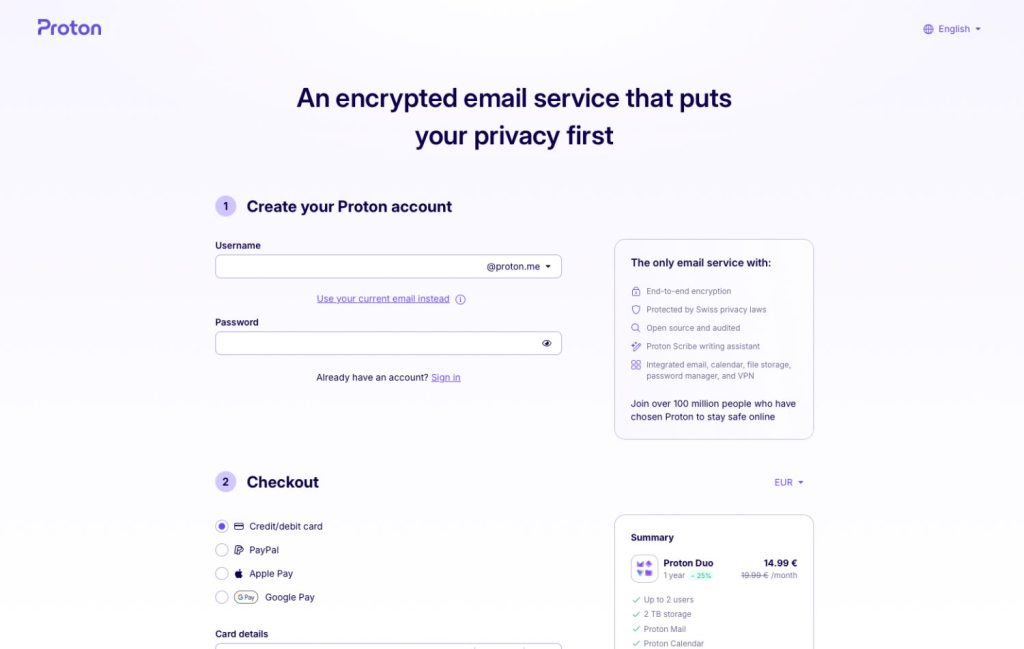
I went with PayPal, which opened a new tab to complete the transaction. It was seamless — no errors, no delays. Proton confirmed the subscription within seconds of payment.
Want to try it yourself? Get Proton Duo with a 30-day money-back guarantee and see for yourself.
Post-Payment Setup: What Comes Next
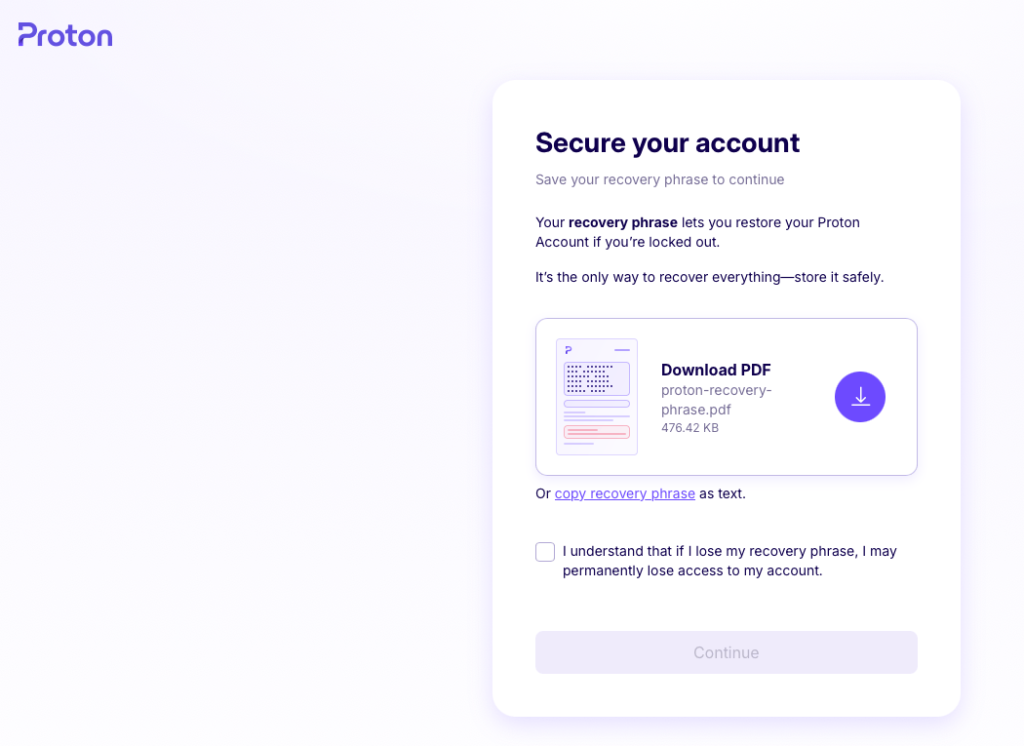
After payment clears, Proton walks you through a short three-step setup sequence: verifying your payment, creating your account, and generating your recovery phrase. The interface is clean and easy to follow.
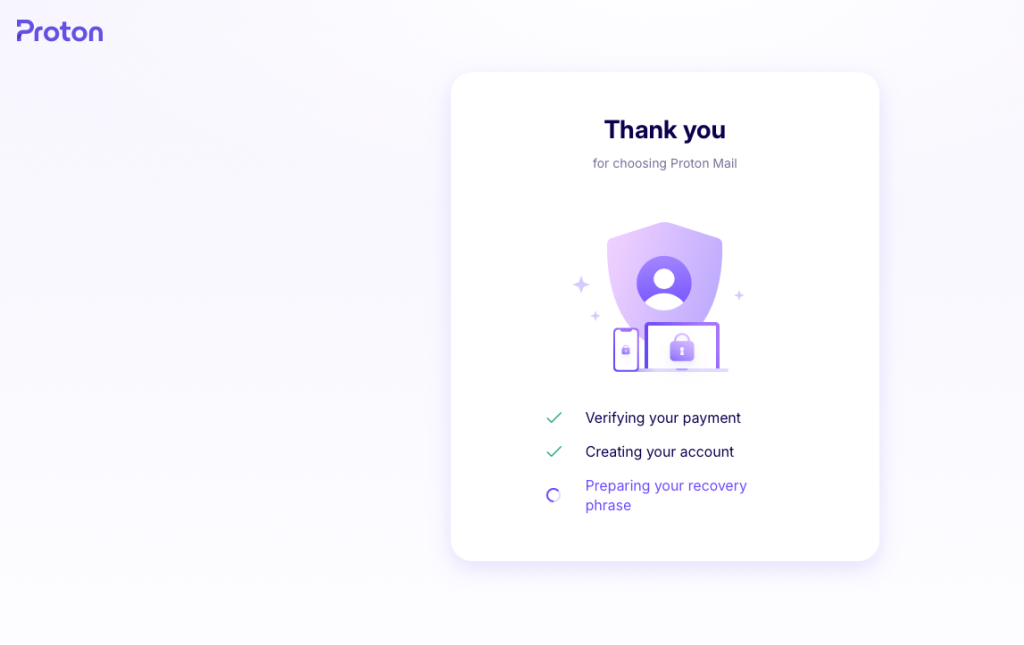
Your Recovery Phrase — Don’t Overlook This
One step you absolutely shouldn’t rush through: saving your recovery phrase. Because Proton uses end-to-end encryption, the company has no way to recover your data on your behalf if you lose both your password and your recovery phrase. You can save it as a PDF or copy it as plain text. Either way, store it somewhere secure before moving on.
Choosing Your Display Name
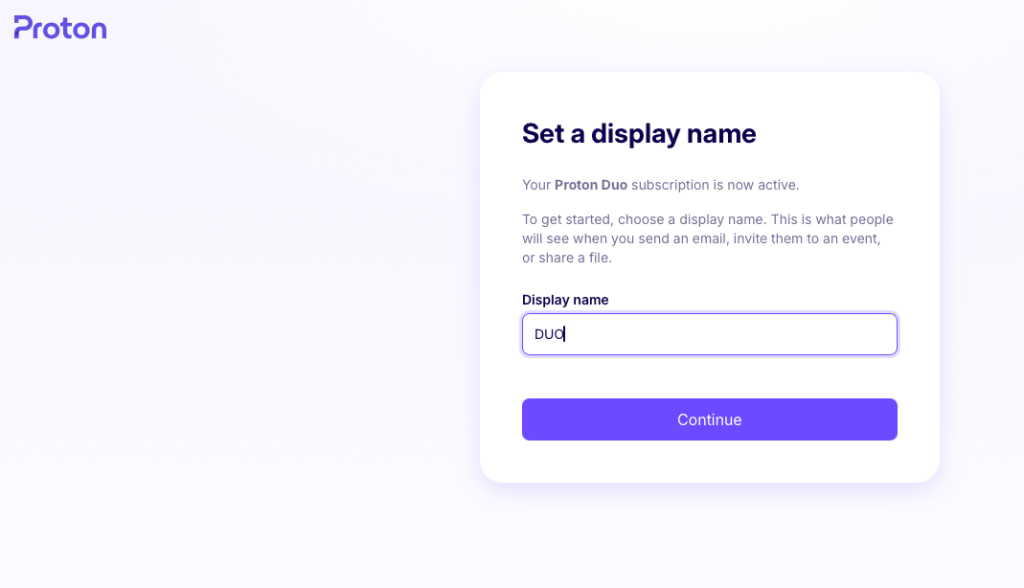
Once your account is secured, you’ll be asked to pick a display name. This is the name that shows up when you send emails, share files, or invite contacts to calendar events. Quick and painless.
A First Look at the Dashboard
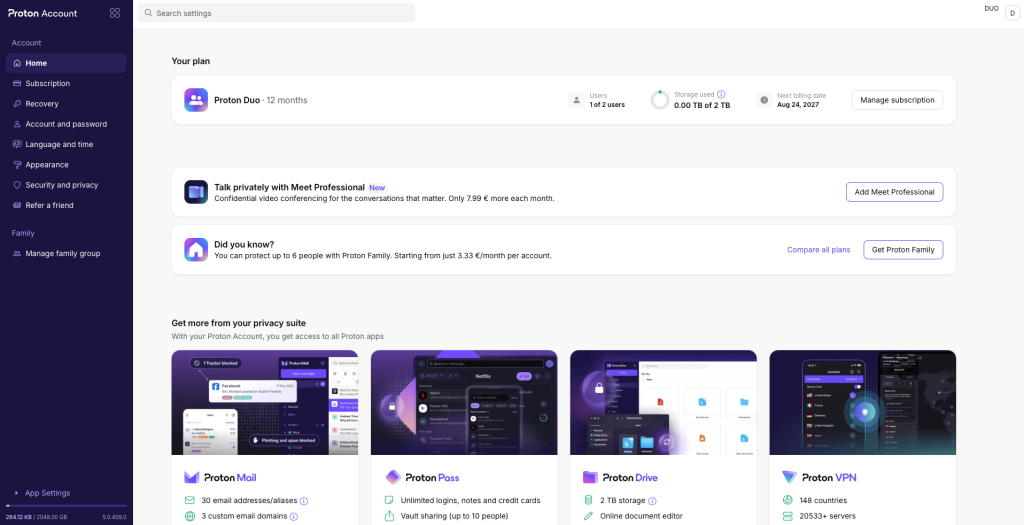
With setup complete, you land on the Proton Account dashboard. It’s well-organized and gives you a clear snapshot of your plan: current users (1 of 2), storage consumed (0.00 TB of 2 TB), and your next billing date. From here you can jump straight into any Proton app — Mail, Calendar, Pass, VPN, Drive, Docs, Sheets, Wallet, Lumo, or the newer Meet feature.
If you’re curious about any of the individual services bundled into Proton Duo, it’s worth reading up on Proton Mail, Proton Drive, and Proton Pass to understand what each one brings to the table. And if you’re using Proton on a Linux machine, check out our guide on Proton on Linux: VPN, Drive, Mail, Pass and more explained.
Adding the Second User: The Core Feature
This is where the Duo plan really earns its name — and also where I spent the most time figuring things out. Inviting a second person isn’t immediately obvious from the dashboard, so here’s the exact path to follow:
- Open Settings in your Proton Account
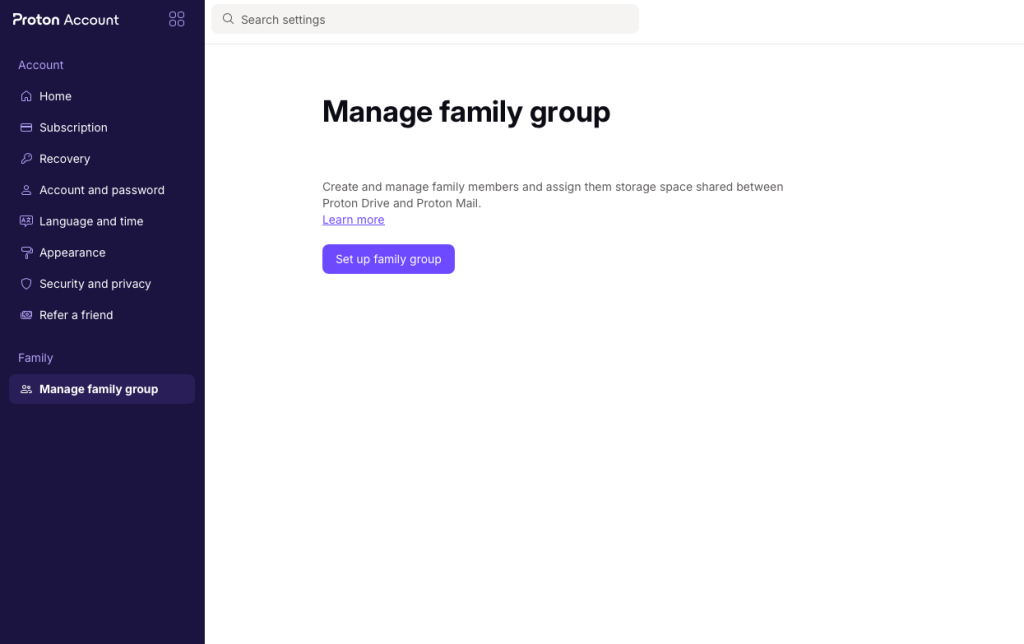
- Go to Family → Manage Family Group
- Click Set Up Family Group
- Give your group a name
- Allocate storage for your admin account
- Then navigate to Family → Users and Addresses to send your invite
It’s a multi-step flow that feels a bit buried, especially if you’re coming from a standard Unlimited account. The “family group” label is a little odd when there are only two of you, but functionally it works fine.
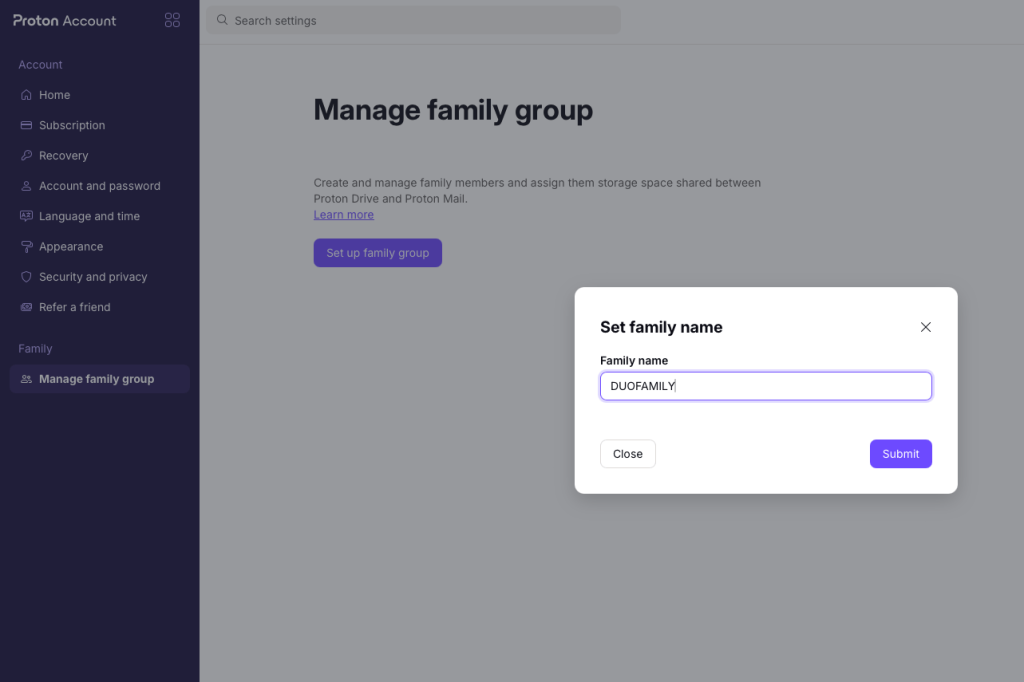
Step 1 — Creating the Family Group
Click “Set up family group,” and you’ll be prompted to give it a name. Nothing complicated here — just pick something recognizable.
Step 2 — Splitting Up the Storage
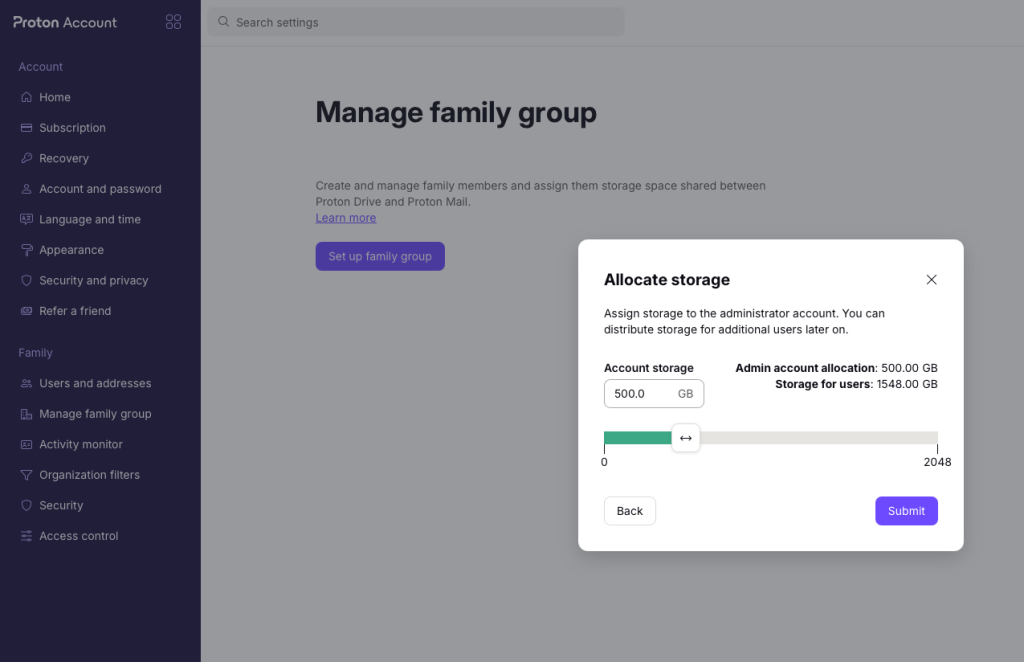
Next, you’ll allocate how much of the 2 TB (2048 GB total) goes to your admin account. A slider makes this easy to adjust. I assigned 500 GB to myself, which left 1,548 GB available for the second user. You can configure it however makes sense for your situation.
Step 3 — Sending the Invite
Head to Users and Addresses and click “Invite user.” Enter the second person’s Proton email address and set their storage allocation. That’s it — an invitation gets sent to their inbox.
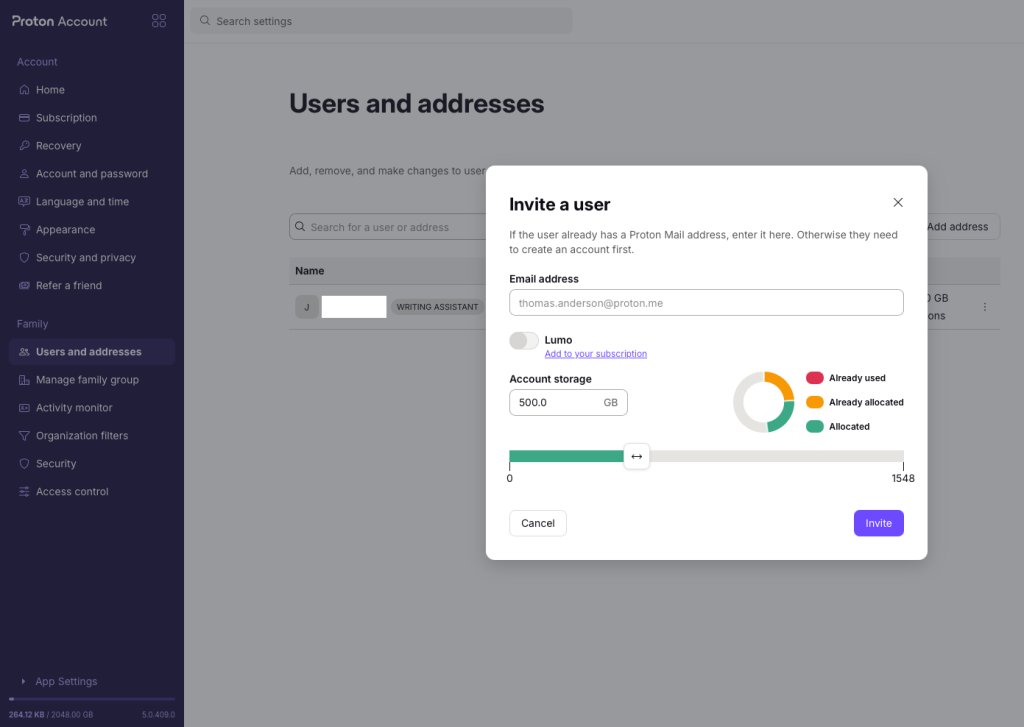
One important requirement: the person you’re inviting must already have a Proton account. A free account works fine — they don’t need a paid subscription beforehand.
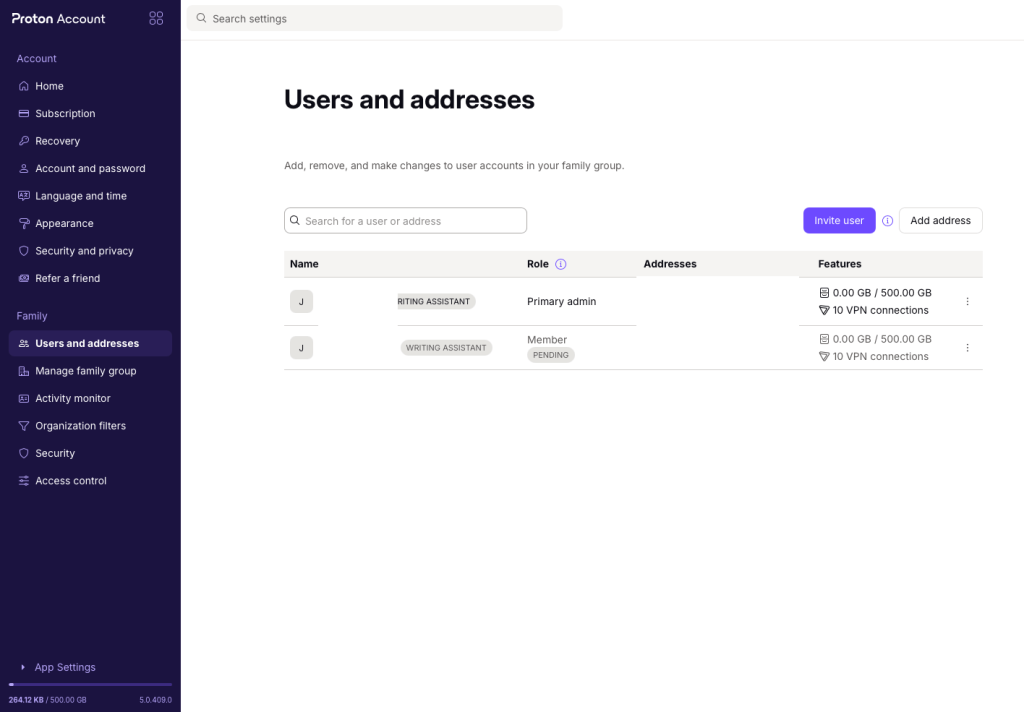
I did run into one snag during this step. My first attempt was with a former Proton Business (B2B) account, and it failed with an error: “User cannot join the organization with their current plan.” That makes sense in hindsight — business accounts are tied to their own organizational structure and can’t be pulled into a consumer family group. Switching to a standard Proton Free consumer account worked without any issues. The invitation went through, and the second user showed up in the list with a “Pending” status until they accepted.
Ready to bring someone along? Start your Proton Duo subscription here.
Recovery Settings: Set These Up Early
After everything was configured, I checked the Recovery section in account settings — and I’d recommend you do the same immediately after setup. My new account showed a “Weak” recoverability score of 4/10 because I hadn’t yet added a backup email address or phone number for password resets. Adding at least one recovery method doesn’t compromise your encrypted data, but it makes regaining account access significantly easier if you ever forget your password.
Proton Duo vs. Proton Family: Which Plan Makes Sense?
If you’re weighing Duo against the Family plan, the decision mostly comes down to how many people you need to cover. For two people, Duo at €14.99/month is the clear choice. If you need seats for three to six people, Proton Family at €23.99/month gives you more users and bumps storage up to 3 TB. Here’s how they compare side by side:
| Proton Duo | Proton Family | |
|---|---|---|
| Users | 2 | Up to 6 |
| Storage | 2 TB | 3 TB |
| Price (billed yearly) | €14.99/mo | €23.99/mo |
| All Proton apps | ✓ | ✓ |
| Proton Scribe | ✓ | ✓ |
Who Is Proton Duo Best Suited For?
Proton Duo is a strong fit for:
- Couples who both want comprehensive privacy tools without the cost of two separate Unlimited subscriptions
- Friends or roommates who trust each other and want to share a privacy-first platform
- Current Proton Unlimited subscribers who want to extend access to one other person at a reasonable price
- Anyone looking to get two full Proton accounts on a budget, upgrading from free tier accounts
It’s worth noting that if the second person already has an active paid Proton consumer plan, they’ll need to cancel it before joining. And as mentioned earlier, Proton Business account holders can’t participate in a consumer family group at all.
If you’re also interested in saving money on a referral, check out our Proton referral link guide to see if you can stack additional credits on top of your subscription.
What Works Well — and What Could Be Improved
After spending time with the plan, here’s my honest take on the highs and lows:
What I liked:
- Solid value for two people: €14.99/month for two full Proton accounts is genuinely competitive
- Complete feature access for both users: Mail, Drive, VPN, Pass, Calendar — nothing is held back
- Clean signup and setup experience: The onboarding flow is polished and fast
- Flexible storage control: You decide how to divide the 2 TB between accounts
- 30-day money-back guarantee: Plenty of time to evaluate with no financial risk
- Rock-solid privacy foundation: End-to-end encryption, open-source apps, and Swiss privacy law protections
What could be better:
- The invite process is buried: A clear “Add your second user” prompt right after account creation would save a lot of digging through menus
- B2B accounts are excluded: If the person you want to invite uses a Proton Business account, they won’t be able to join — they’d need a separate consumer account
- “Family group” is a strange label for two people: It works, but the terminology feels like it was carried over from the Family plan without much adaptation
- 2 TB might feel limiting long-term: The Family plan offers 3 TB for more users — heavy users splitting 2 TB between two accounts could eventually feel squeezed
Final Verdict: Is Proton Duo Worth It?
For two people who both want the full Proton privacy suite, Duo is a genuinely smart choice. The value proposition is clear, both users get unrestricted access to every Proton app, and the storage allocation system gives you real flexibility. The main friction points — a non-obvious invite flow and the B2B account restriction — are manageable once you know about them.
If you’re already on Proton Unlimited and want to bring someone else into the ecosystem, upgrading to Duo is a straightforward decision. And with a 30-day money-back guarantee in place, there’s very little risk in giving it a shot.
Get Proton Duo now — 25% off with a yearly plan
Looking to dig deeper into the Proton ecosystem? Our comparison of Proton VPN vs NordVPN is a great place to start if you’re evaluating the VPN side of things. And if you’re a Linux user, our Proton VPN for Linux guide covers everything from the GUI to CLI tools.


 English
 Deutsch
 Nederlands
 Français
 Español
 Italiano
 Svenska
Ist bei Proton Duo sichergestellt, dass die beiden Nutzer separate (und für den anderen nicht einsehbare eMails, Speicherplatz, etc) Bereiche gibt? Kann darüber hinaus z.B. ein gemeinsamer (für beide Nutzer einsehbare Speicher) eingerichtet werden? Ebenso getrennte als auch gemeinsame eMail Accounts?
Mit Dank für Info
Christoph