
With billions of active users worldwide, Gmail is easily one of the most popular email services on the planet. Whether you’re logging in for the first time, switching to a new device, or just trying to get back into an account you haven’t touched in a while, the process can feel a little confusing — especially if you’re juggling multiple accounts. This guide walks you through everything you need to know: signing in via browser or app, recovering a forgotten password, managing multiple accounts, and keeping your account secure.
Before You Start: What You’ll Need
Getting into your Gmail account requires just a few things:
- A Google account — your Gmail address ending in @gmail.com
- Your password — the one you set when you first created the account
- An internet-connected device — a computer, smartphone, or tablet will all work
No account yet? You can create one for free directly from Google’s sign-in page. Just click “Create account” and follow the prompts to get set up.
Signing In to Gmail on a Computer or Laptop
The most common way to access Gmail is through a web browser — Chrome, Firefox, Safari, Edge, it doesn’t matter which one you prefer. Here’s how it works:
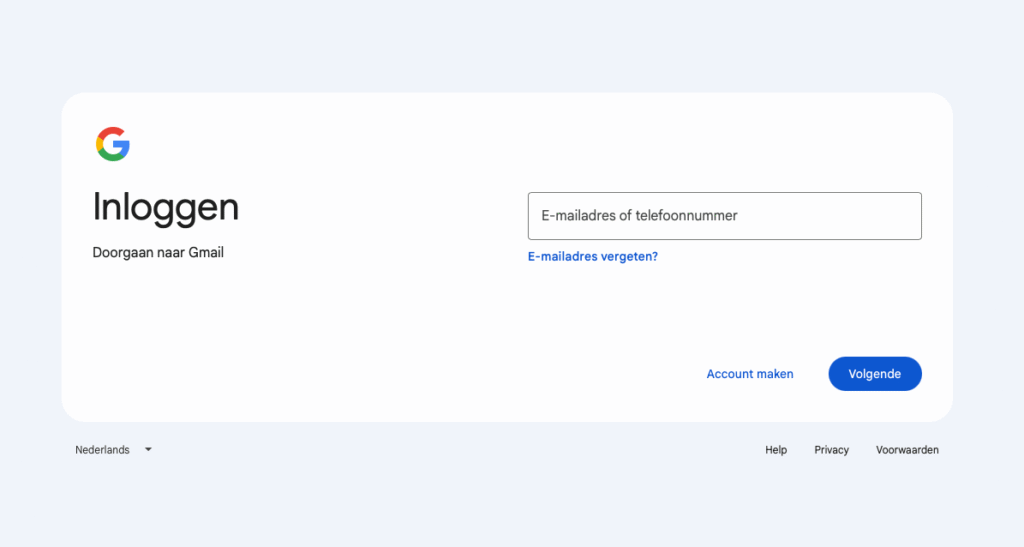
Step 1: Open Gmail in Your Browser
Type gmail.com into your browser’s address bar and hit Enter. If you’re not already signed in, Google will redirect you to its login page automatically.
Step 2: Enter Your Email Address
In the text field provided, type your full Gmail address — for example, [email protected]. If you’ve linked a phone number to your Google account, you can enter that instead. Then click “Next”.
Step 3: Enter Your Password
On the next screen, you’ll be prompted to enter your password. Type it carefully — passwords are case-sensitive — and click “Next” again.
Step 4: Complete Two-Step Verification (If Enabled)
If you’ve set up two-step verification on your account, Google will ask you to confirm your identity with an additional step. This might involve:
- A verification code sent via SMS to your phone
- A prompt notification sent to the Google app on your smartphone
- A code generated by an authenticator app like Google Authenticator
Just follow the on-screen instructions to finish the verification process.
Step 5: You’re In
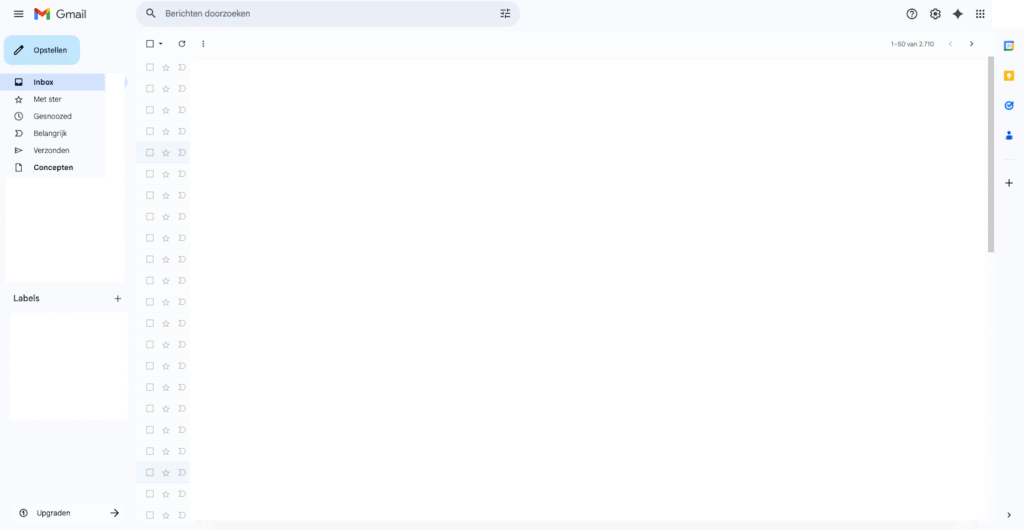
Once everything checks out, you’ll land directly in your Gmail inbox, where you can see incoming messages, drafts, and all your other folders.
Signing In to Gmail on a Smartphone or Tablet
If you prefer to access Gmail on your phone or tablet, you have two options: use the browser or download the official Gmail app. The app is generally the better choice — it’s more user-friendly and supports push notifications so you never miss an important email.
Android Devices
Most Android phones come with the Gmail app pre-installed. If yours doesn’t have it, you can grab it for free from the Google Play Store. Once it’s on your device:
- Open the Gmail app.
- Tap “Sign in” when prompted.
- Select “Google” as your account type.
- Enter your Gmail address and tap “Next”.
- Enter your password and tap “Next”.
- Complete any verification steps, and you’re done.
iPhone and iPad (iOS)
Gmail doesn’t come pre-installed on Apple devices, but you can download it from the App Store at no cost. After installing it:
- Open the Gmail app on your iPhone or iPad.
- Tap “Sign in”.
- Type in your Gmail address and tap “Next”.
- Enter your password and tap “Next”.
- Follow any remaining verification steps.
Alternatively, you can read Gmail messages through Apple’s built-in Mail app — you’ll just need to manually add your Gmail account through your device’s settings.
Managing Multiple Gmail Accounts
It’s very common to have more than one Gmail account — one for personal use and one for work, for example. Fortunately, switching between them is quick and easy.
In a Web Browser
- Click your profile photo or initial in the top-right corner of Gmail.
- Select “Add another account” to sign in to an additional account.
- Or simply click on any account that’s already been added to switch to it instantly.
In the Gmail App
- Tap your profile photo or initial in the top-right corner of the app.
- A list of your signed-in accounts will appear — tap the one you want to switch to.
- To add a new account, tap “Add another account”.
Forgot Your Password? Here’s How to Get Back In
It happens to everyone at some point. If you can’t remember your password, Google makes it relatively straightforward to reset it and regain access.
Resetting Your Password
- Go to the Gmail sign-in page and enter your email address.
- Click “Next”.
- On the password screen, click “Forgot password?”.
- Google will offer several recovery options, which may include:
- A recovery code sent via SMS to your linked phone number
- A recovery link sent to your backup email address
- Answering security questions
- Choose the method that works for you and follow the steps to set a new password.
Forgot Your Email Address Too?
If you’ve also lost track of which email address you used, look for the “Forgot email?” link on the sign-in page. By entering your linked phone number or recovery email, Google can help you track down the address associated with your account.
Signing in to Gmail on a shared computer — at school, the office, a library, or an internet café — comes with some real security risks. Keep these habits in mind:
- Always sign out when you’re finished. Click your profile photo and select “Sign out”.
- Don’t save your password in the browser on a device that others use.
- Use incognito or private browsing mode — this automatically clears your session data when you close the window.
- Review your account activity through your Google account settings to see which devices have recently accessed your account, and remove any sessions you don’t recognize.
If you’re curious about privacy in general and want to better protect yourself online, check out this guide on how to hide your IP address in 2026 for some practical tools and tips.
How to Enable Two-Step Verification for Better Security
Two-step verification (also called two-factor authentication, or 2FA) is one of the most effective ways to protect your Gmail account. Even if someone gets hold of your password, they still won’t be able to sign in without your second form of verification.
Setting It Up
- Sign in to your Gmail account.
- Click your profile photo in the top-right corner and select “Manage your Google Account”.
- Navigate to the “Security” tab.
- Scroll to the “How you sign in to Google” section and click “2-Step Verification”.
- Follow the steps to configure your preferred verification method — either SMS or an authenticator app.
From that point forward, Google will require a second verification step whenever you sign in on an unfamiliar device.
Is Gmail the Right Email Service for You?
Gmail is a polished, feature-rich email platform that works well for most people. That said, if privacy is a priority for you, it’s worth knowing there are alternatives — particularly privacy-focused European providers that don’t use your email content to serve you ads. You might also want to explore StartMail as a privacy-conscious option.
Curious how Gmail stacks up against more privacy-oriented services? It’s worth doing a comparison before committing to any single platform. And if you’re thinking about broader digital privacy, European privacy-first browsers are another area worth exploring.
Frequently Asked Questions
Can I use Gmail without a Google account?
No — a Google account is required to use Gmail. Your Gmail address is your Google account, and it also grants you access to other Google services like Google Drive, YouTube, and Google Maps.
Can I stay signed in on multiple devices at the same time?
Yes, absolutely. You can be logged in to the same Gmail account on multiple devices simultaneously. Your emails will sync across all of them in real time.
How do I sign out of Gmail?
Click your profile photo or initial in the top-right corner of Gmail and select “Sign out”. If you have multiple accounts signed in, you’ll also have the option to sign out of all accounts at once.
What should I do if my account has been hacked?
Go to Google’s account recovery page immediately and change your password. After that, enable two-step verification and review which devices have access to your account. Remove any sessions or devices you don’t recognize right away.
Wrapping Up
Signing in to Gmail really is a simple process once you know the steps — whether you’re doing it through a browser on your laptop or through the app on your phone. Head to gmail.com, enter your credentials, complete verification if needed, and you’re in. The most important thing is to make sure your account stays secure: use a strong, unique password, enable two-step verification, and always sign out on shared devices. Those three habits alone will go a long way toward keeping your inbox safe.
If you’re interested in exploring privacy-friendly alternatives to Gmail, it’s worth looking into StartMail or checking out what European alternatives to mainstream software have to offer in terms of privacy and data protection.
 English
  Deutsch
  Nederlands
  Français
  Español
  Italiano
  Svenska
Dat ziet er zo logisch uit. Maar ik krijg deze vensters niet. Wanneer ik “gmail.com” invoer in de adresbalk van de Chrome browser kom ik op de pagina “Gmail toevoegen”. Wanneer ik dan mijn gmail adres invul krijg ik een bericht “dit adres is in gebruik kies een ander adres”. Maar ik wil alleen naar mijn bestande inbox gaan.