If you’re already a Proton user and you’ve been wondering whether it makes sense to bring a family member or partner into your privacy setup, you’re not alone. Proton offers two multi-user personal plans designed exactly for that purpose: Proton Duo, which covers two people, and Proton Family, which supports up to six. I signed up for Proton Duo specifically to test it hands-on — taking advantage of the 30-day money-back guarantee — and this article walks through everything I discovered: what you get, how the setup actually works, what tripped me up, and whether the value proposition holds up.

⚡ BLACK FRIDAY - 50% OFF PROTON UNLIMITED
Get Proton Unlimited with VPN, Pass, Mail, Drive & more with 50% off the 12-month plan. Or get Proton Mail Plus with 60% off.
Go to Proton UnlimitedProton Duo vs. Proton Family: What’s the Difference?
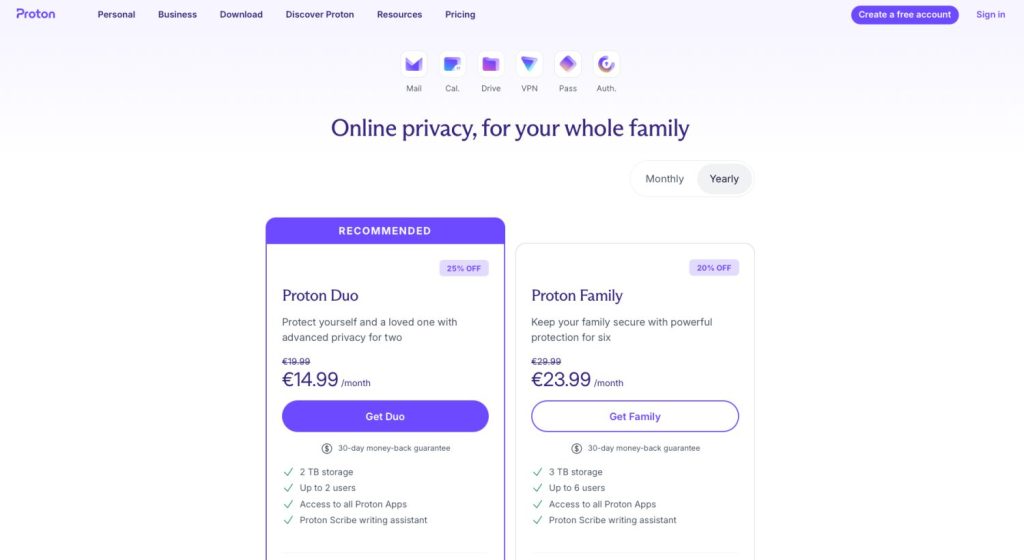
Both plans give every member access to the full Proton ecosystem — Mail, Drive, Calendar, VPN, Pass, Scribe, and more — under one shared subscription. The plans differ mainly in how many seats you get and how much storage is in the pool:
- Proton Duo: Up to 2 users, 2 TB shared storage, €14.99/month billed yearly (25% discount)
- Proton Family: Up to 6 users, 3 TB shared storage, €23.99/month billed yearly (20% discount)
Both include Proton Scribe, access to all Proton apps, and a 30-day money-back guarantee. For couples or two-person households, Duo is the sharper deal on a per-person basis. For families of three to six, the Family plan’s per-person cost drops to as low as roughly €4/month — hard to beat for a full privacy suite. If you want to save even more, check out the Proton Family Discount 2026 page for current offers before signing up.
Since both plans share the same management interface and infrastructure, nearly everything I describe below applies to both. I’ll call out differences where they exist.
Getting Started: Checkout and Account Creation
The signup flow is genuinely one of the smoother ones I’ve encountered. Head to Proton’s pricing page, select your plan, choose yearly billing to unlock the discount, and proceed to checkout. The payment page is clean and accepts credit/debit cards, PayPal, Apple Pay, and Google Pay.

I paid via PayPal. One heads-up: PayPal opens in a new browser tab to complete the transaction, so if you have a pop-up blocker running, temporarily disable it. Proton actually warns you about this on the checkout page, which is a thoughtful detail. After payment goes through, you land on a confirmation screen while Proton sets up your account in the background — in my case, this took about two minutes.

From there, a brief onboarding flow asks you to set a display name and save your recovery phrase. The entire process — from clicking “Get Duo” to arriving at the dashboard — took under five minutes.
Your Recovery Phrase: Take This Seriously
Before you click past the recovery phrase screen, stop. Because Proton’s encryption is end-to-end, there’s no password reset backdoor. If you lose both your password and your recovery phrase, your data is gone — permanently. Proton provides the phrase as a downloadable PDF and also lets you copy it as plain text.

Store it somewhere you’ll actually be able to find it — a password manager, an encrypted backup drive, or even a printed copy in a secure spot. This step is easy to rush, but it’s one of the most important things you’ll do during setup.
Inside the Proton Dashboard
Once you’re in, the Proton hub presents a clean grid of every available app: Mail, Calendar, Drive, Docs, Sheets, Pass, VPN, Wallet, Lumo, and Meet. For a platform that leads with privacy as its core pitch, the breadth of the product suite is impressive.

The Account settings panel shows your plan at a glance — plan name, user count, storage used, and next billing date. With Duo active, I could see “1 of 2 users” right at the top, a constant reminder that the point of this whole plan is to get that second seat filled.

Setting Up Account Recovery Early
Something I noticed right after logging in: the Recovery section in account settings shows a “Weak” score (4/10) until you add a recovery email or phone number. This is worth fixing before you do anything else — especially if the account will eventually be used by someone less comfortable with technical details.

A recovery email or phone number helps restore account access if you get locked out — though it doesn’t replace the recovery phrase when it comes to recovering encrypted data. For a family member who might not be meticulous about saving credentials, setting this up is particularly important.
How to Add a Second User (Step-by-Step)
This is the part of the process that isn’t immediately obvious, especially if you’re coming from a solo Proton Unlimited account. Here’s exactly how it works.
Step 1: Create Your Family Group
Navigate to Settings → Family → Manage family group. On your first visit, you’ll see a mostly empty page with a single “Set up family group” button. Click it, and you’ll be prompted to give your group a name. I used “DUOFAMILY,” but any name works — this is just for your own reference.


Step 2: Allocate Storage to the Admin Account
After naming the group, you’ll use a slider to decide how much of the shared storage pool goes to your admin account versus remaining available for other members. With Proton Duo’s 2 TB total, I assigned myself 500 GB and left the rest for the second user. You can adjust these allocations anytime after setup. Hit “Submit” to finalize the group.

Step 3: Send the Invitation
Go to Settings → Family → Users and addresses. You’ll see yourself listed as Primary Admin, with an “Invite user” button in the top right corner. Click it, enter the other person’s Proton Mail address, set their storage allocation using a slider, and optionally toggle on Lumo (Proton’s AI assistant) if your plan includes it.


The Important Catch: Account Compatibility
Here’s something Proton doesn’t make obvious until you run into it: the person you’re inviting must have either a free Proton account or no Proton account at all. Users on any active paid plan — particularly Proton’s B2B business plans — cannot be added to a personal family group.
I discovered this the hard way when I tried inviting someone with a former Proton business account. The system returned an error: “User cannot join the organization with their current plan.” There’s no workaround — it’s a hard block. When I switched to inviting someone with a standard free Proton account, it worked immediately. The invited user showed up in the Users and addresses list with a “PENDING” status while waiting for them to accept.

The bottom line: before purchasing either plan, confirm that the people you want to add either have a free consumer Proton account or are brand new to Proton. If they’re on a paid personal plan like Proton Unlimited, they may need to cancel that first. If they’re on a business plan, it won’t work at all.
What Each Member Gets Access To
Once someone joins the family group, they get the complete Proton app suite — the same access level as a standalone Proton Unlimited subscriber. That includes:
- Proton Mail — premium features including 30 email addresses/aliases, custom domain support, and dark web monitoring
- Proton Drive — with their individually allocated storage from the shared pool
- Proton VPN — up to 10 simultaneous connections with access to all server locations
- Proton Pass — unlimited saved logins, vault sharing, and built-in two-factor authentication
- Proton Calendar
- Proton Scribe writing assistant
Crucially, each person’s data stays entirely private. You’re sharing a subscription and a storage pool — not a data silo. The admin cannot read anyone else’s emails or browse their files. Every account is independently encrypted. Swiss privacy law applies to all members equally, not just the account holder who pays the bill.
What Works Well — and What Doesn’t
What I Liked
- Signup is fast and friction-free. From payment to dashboard in under five minutes, with no confusing dark patterns.
- Everyone gets the full product suite. No watered-down “family tier” — all users get the same access as a paid individual subscriber.
- Privacy is genuinely separate per user. Sharing a plan doesn’t mean sharing data. Each account is encrypted independently.
- Flexible storage management. The admin can redistribute storage allocations across members at any time.
- 30-day money-back guarantee. Enough time to test whether this setup actually works for your household before committing.
- Swiss legal protections for everyone. All users benefit from Proton’s Swiss jurisdiction, regardless of where they’re located.
What Could Be Improved
- The family group setup flow isn’t intuitive. There’s no prompt or guidance telling you that you need to visit “Manage family group” before you can invite anyone. A new user could easily miss this entirely.
- Compatibility restrictions aren’t communicated upfront. The fact that business plan users can’t join a personal family group is buried — you only discover it when the invite fails. Proton should surface this before you commit.
- Invitees need a Proton account first. If the person you’re inviting has never used Proton, they’ll need to create a free account before they can accept. It’s a minor extra step, but worth knowing in advance.
- No parental controls. For a plan that’s marketed toward families, the complete absence of monitoring or content restriction tools for younger users is a noticeable gap. Every account is treated identically.
Is the Price Actually Worth It?
For two people, Proton Duo at €14.99/month (billed yearly) works out to roughly €7.50 per person — for a full-featured, encrypted alternative to Google Workspace or Microsoft 365. That’s a compelling deal, particularly if you’re currently running two separate Proton Unlimited subscriptions. Consolidating saves money and simplifies billing.
Proton Family at €23.99/month scales even better with more users. At six people, the cost per person drops to under €4/month — less than most standalone VPN plans alone, let alone a full privacy suite that includes encrypted email, cloud storage, a password manager, and more.
The setup experience is smooth once you know what to do, storage allocation is flexible enough for varying usage patterns within a household, and the security model doesn’t cut corners just because it’s a family plan. If you want to explore the individual apps before committing, you can start with Proton on Linux: VPN, Drive, Mail, Pass and More Explained for a broader look at the ecosystem.

Proton Duo or Proton Family — Which Should You Pick?
Go with Proton Duo if:
- You need to cover exactly two people (partner, sibling, parent)
- 2 TB of shared storage is enough for your household
- You want the lower monthly commitment at €14.99/month yearly
Go with Proton Family if:
- You have three to six people to bring on board
- You want the larger 3 TB storage pool
- You’d rather have room to add more users without upgrading later
- The ~€4/person/month cost at full capacity justifies the higher plan price
For most two-person households, Duo is the smarter pick — it’s priced more aggressively per person and gives you everything you actually need. You can also check out the Proton Referral Link / Code page to see if there are any extra credits available when you sign up.
→ Get Proton Family or Duo — 30-day money-back guarantee
Final Verdict
Both Proton Duo and Proton Family deliver real value — especially if you’re already sold on Proton’s privacy model and want to extend it to the people you live with without paying for separate individual subscriptions. The onboarding is fast, the interface is clean, and every member gets a genuinely full-featured account rather than a cut-down family tier.
Just sort out the account compatibility question before you buy. Whoever you’re inviting should have a free Proton account (or no account at all) ready to go. Handle that first, and the rest of the experience is about as smooth as it gets. With a 30-day money-back guarantee on both plans, there’s very little risk in trying it out for yourself.
→ Try Proton Family or Proton Duo — 30-day money-back guarantee
Last Updated on 5 October 2026


 English
 Deutsch
 Nederlands
 Français
 Español
 Italiano
 Svenska